Gmail desktop notifications: how to turn them on, and why they stop
Gmail on a computer can show a notification for new mail, but only while you are signed in and Gmail is open in a browser tab. Three switches must all be on: Gmail’s own setting, your browser’s permission for mail.google.com, and your computer’s permission for the browser. Focus or Do not disturb hides them too. Check them in this order.
1. Turn them on in Gmail
The setting belongs to each Gmail account, so repeat it in every account you use.
- Open Gmail in your browser, click the gear at the top right, then See all settings.
- On the General tab, scroll to Desktop notifications.
- Choose New mail notifications on. With inbox tabs (categories) on, this notifies only for mail in Primary, so mail in Promotions, Social or Updates never shows up. Important mail notifications on notifies only for mail Gmail marks as important.
- Click Save Changes at the bottom of the page.
If Gmail shows a link to enable desktop notifications, click it and allow them when the browser asks.
2. Allow notifications for Gmail in your browser
The quickest way, in Chrome, Edge and Firefox: on the Gmail tab, click the icon at the left of the address bar and set Notifications to Allow. Or open the browser’s list:
- Chrome: Settings → Privacy and security → Site settings → Notifications.
mail.google.commust not be under “Not allowed to send notifications”. - Edge: Settings → Privacy, search, and services → Site permissions → Notifications, or type
edge://settings/content/notificationsin the address bar. - Firefox: Settings → Privacy & Security → Permissions → Notifications → Settings.
- Safari on a Mac: Settings → Websites → Notifications.
3. Allow the browser in macOS or Windows
The browser shows Gmail’s notification through your computer, which has its own switch for each app.
- macOS: System Settings → Notifications → your browser. Turn on Allow notifications, and set the alert style to Banners or Alerts, not None.
- Windows 11: Settings → System → Notifications. Turn notifications on, then turn on your browser in the list and its Show notification banners.
- Windows 10: Settings → System → Notifications & actions, and turn on your browser there.
4. Check Focus and Do not disturb
While a Focus is on in macOS, or Do not disturb in Windows (Focus assist in Windows 10), notifications are held back without a sound. Turn it off, or allow your browser in that Focus.
5. Keep a Gmail tab open
Gmail’s notifications come from the Gmail page itself, so they stop when its tab or the browser is closed. Google’s help page says notifications work “after you sign in to Gmail and open it in your browser” (Google: Use Gmail notifications, read October 30, 2026). A pinned tab helps you keep it.
Browsers can also put tabs you have not looked at for a while to sleep to save memory, such as Chrome’s Memory Saver and Edge’s sleeping tabs. If notifications stop after a while, add mail.google.com to the browser’s list of sites to keep active.
Still nothing?
- Check whether any site can show you a notification in this browser. If none can, the block is in the browser or the system, not in Gmail.
- With several accounts, each needs its own open tab and its own setting. See notifications for multiple Gmail accounts.
- A notification for one message can show twice if another tool, such as a notifier extension, also shows one. Turn one of them off.
Notifications without a Gmail tab
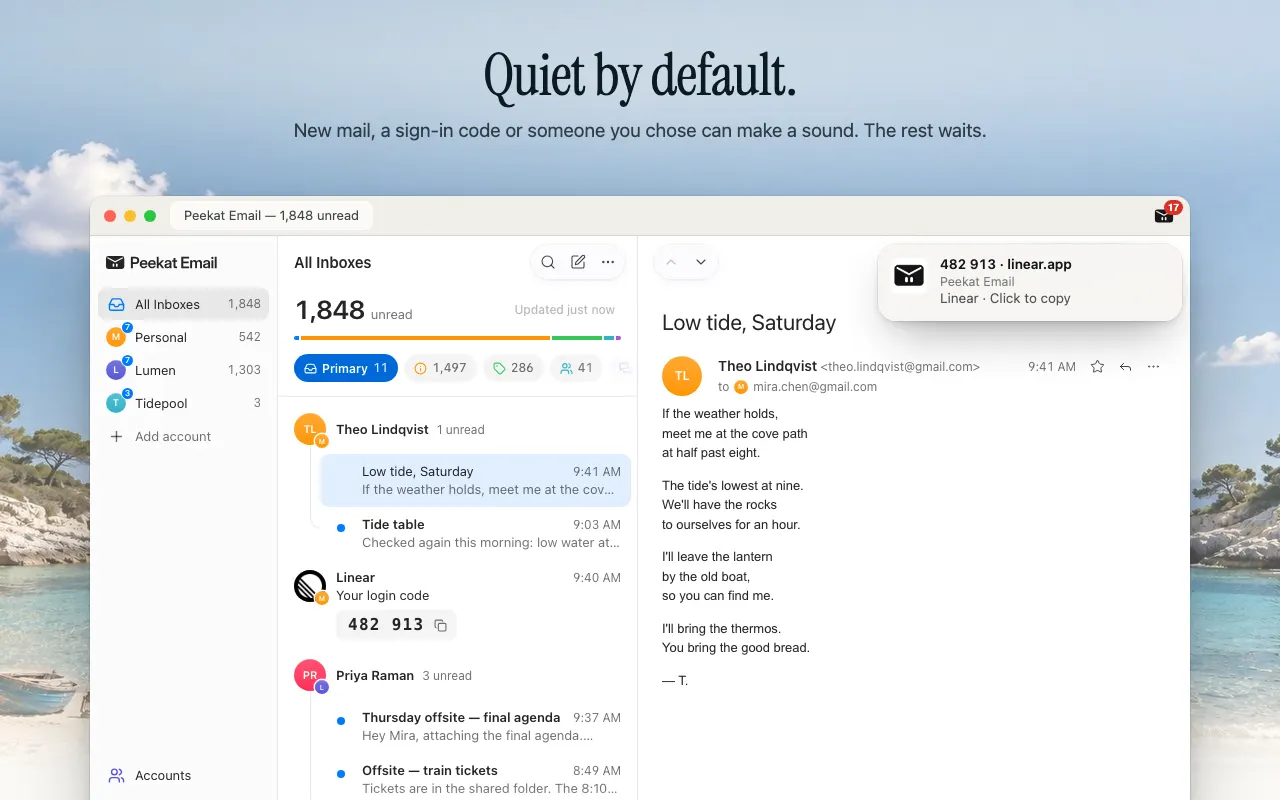
Peekat Email is a free browser extension that checks your Gmail accounts from the browser itself, so its notifications do not need a Gmail tab, only a running browser. Its setup sends a test notification and asks whether you saw it; if you didn’t, it shows the macOS or Windows settings above for your browser.
It is quiet by default: new mail in Primary, verification codes and sign-in links, and people you choose make a notification. The rest waits in the list and the counts, silently.
 Add to Chrome — free
Chrome Web Store and Edge Add-ons. Other browsers
Add to Chrome — free
Chrome Web Store and Edge Add-ons. Other browsers